<aside>
📋
Custom Forms let drivers capture structured data during their shifts, ensuring consistent information collection for compliance, inspections, and operational workflows.
- Standardize data collection: Ensure all drivers capture the same information in the same format
- Capture evidence on the go: Add photos and detailed information directly from the mobile app
- Track completion: View all submitted forms in one place for audit and compliance purposes
- Support flexible workflows: Use conditional fields that adapt based on driver selections
</aside>
Overview
- Access the forms list from your running shift
- Select the form you want to complete
- Fill in all required fields including text, photos, and selections
- Review and submit the completed form
- View your submitted responses in the form history
Access forms during your shift
In the Running Shift screen, click on Forms
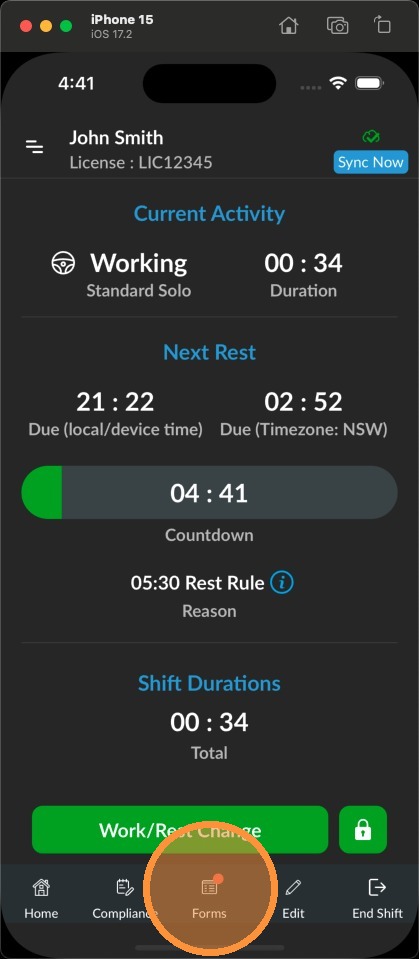
Click on Forms
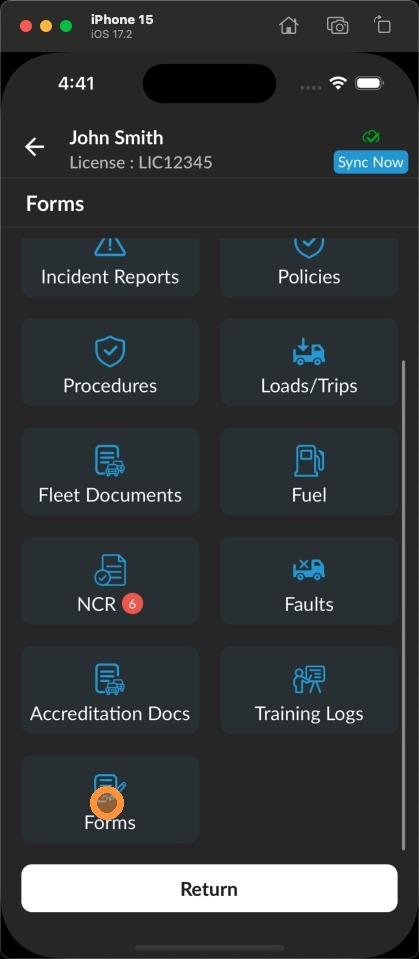
Select a form to complete
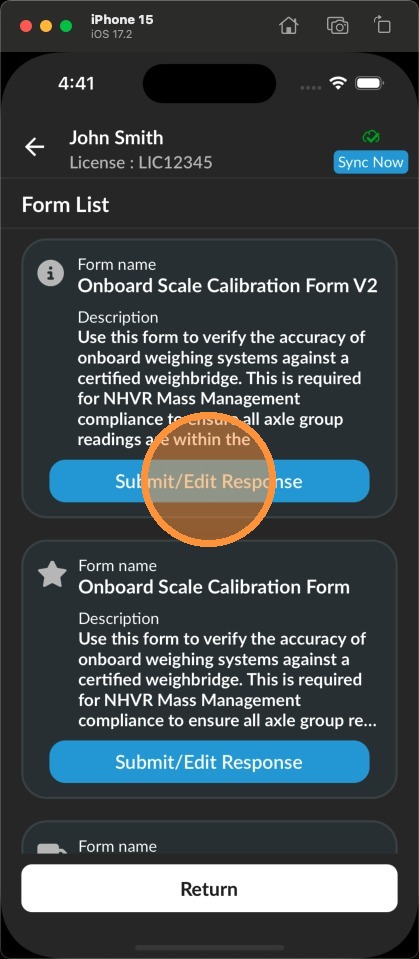
You will see a list of all available forms that can be filled. Locate the form you want to complete. Click on Submit/Edit Response for that form.
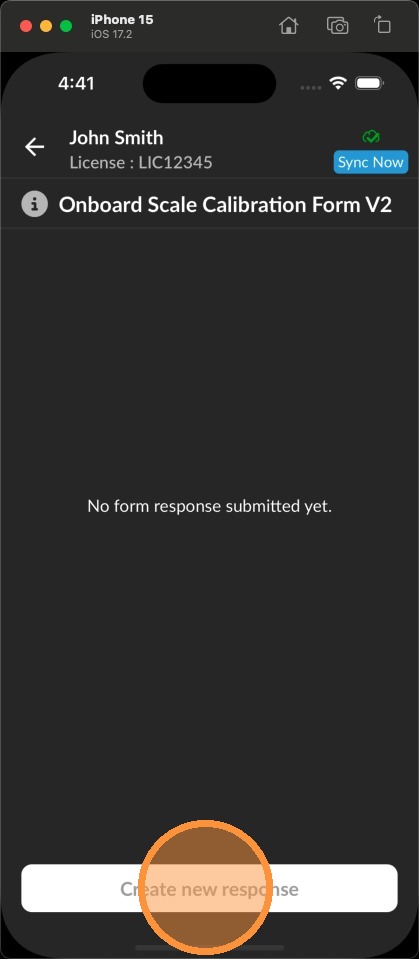
Click on the Create new response button to add a new entry.